

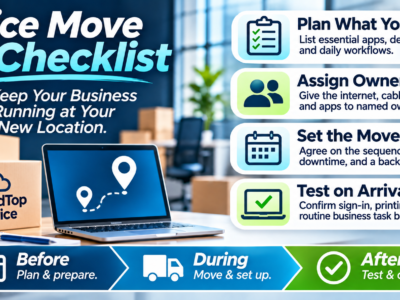
An office move IT checklist keeps the technology side of a relocation from becoming the thing that derails it. The furniture will arrive and the signs will go up, but if the internet isn’t ready, the phones don’t work, or your business software won’t open on the first morning, the move stalls where it hurts most. The way to avoid that is to plan the IT work alongside everything else, around your billing, your customer service, and the first working day in the new space. This guide covers what to list, who owns which piece, how to sequence the move, and what to test on arrival, and it ends with a before, during, and after checklist you can assign by name.
The Short Version
- List your essential apps, devices, and daily workflows before anything moves.
- Give every piece an owner: internet, cabling, equipment, and the apps.
- Agree the move sequence, plan for some downtime, and have a fallback way to work.
- Test sign-in, printing, and a real business task the moment you arrive.
- Agree the scope with your IT provider before any work is booked.
List Your Essential Apps, Devices, and Workflows
Start with what your business actually runs on, not the furniture. List the applications you can’t work without, your accounting or billing software, your CRM, email, and anything you host in the cloud, and the devices that matter, any servers, the computers, printers, scanners, signature pads, and phones. Then note the daily workflows that depend on them: how invoices go out, how customer calls are answered, how orders are processed. This list is the backbone of the plan. It tells you what has to work on Day One in the new space, and it is the difference between moving boxes and moving a business without missing a beat.
Assign Internet, Cabling, and Equipment to Named Owners
A move has a lot of moving parts, and the ones that get missed are usually the ones nobody owned. So give each piece a name. Internet is the big one: order the new connection early, because providers often need weeks of lead time, and confirm the install date in writing. Cabling and network setup in the new space need an owner too, as do packing, moving, and reconnecting the computers, printers, and phones. Decide who handles each part, whether it is your IT provider, the building, the internet company, or someone in the office. Writing an owner next to every task is what keeps the internet from being “someone’s job” that turns out to be no one’s on moving day.
Agree the Move Sequence, Downtime, and a Fallback Work Plan
Decide the order things happen, and be realistic that some downtime is likely during a move rather than assuming there won’t be any. Agree the sequence with your IT provider: when equipment is powered down and disconnected at the old space, when it is set up and tested at the new one, and when staff switch over. Then plan for the gap. If the new internet isn’t live the first morning, or a system takes longer to come up than hoped, what is the fallback? Mobile hotspots, working from home for a day, a cloud app reachable from anywhere? Agreeing the sequence and a fallback in advance turns an unexpected delay into a planned inconvenience instead of a lost day. And time the riskiest steps away from your busiest periods, such as a billing run or a month-end close, so a hiccup doesn’t land at the worst moment.
Test Sign-in, Printing, and a Routine Task on Arrival
Setting equipment up isn’t the same as confirming it works, so test before you call the move done. On arrival in the new space, have someone sign in on each type of device, print to the printers, and run a routine business task end to end, send a test invoice, open a customer record, process a sample order, whatever your team does every day. Testing a real task, not just “does it turn on,” is how you catch a wrong setting or a missed reconnection while it is easy to fix, rather than discovering it when a customer is on the line. Do this with the person who will actually use each system, so nothing is just assumed to be fine.
Your Before, During, and After Checklist
Pull it together into one plan, and put a name in the owner column for each task. The suggested owners below are a starting point; change them to fit your team.
| Task | Owner |
|---|---|
| Before the move | |
| Order the new internet connection and confirm the install date in writing. | Office manager |
| List essential apps, devices, and daily workflows. | Owner / office manager |
| Arrange cabling and network setup in the new space. | IT provider |
| Agree the move sequence and a fallback work plan with your IT provider. | IT provider + owner |
| Schedule the riskiest steps away from billing and deadlines. | Owner |
| Back up key systems and data before anything is unplugged. | IT provider |
| During the move | |
| Power down and disconnect equipment at the old space. | IT provider |
| Move and reconnect computers, printers, and phones. | Movers + IT provider |
| Confirm the new internet is live. | Office manager |
| Set up and power on servers and network equipment. | IT provider |
| After the move | |
| Test sign-in on each type of device. | Staff + IT provider |
| Test printing to the printers. | Staff |
| Run a routine business task end to end (invoice, customer record, order). | Staff |
| Confirm email and business apps are working. | IT provider |
| Note anything unresolved and who is handling it. | Office manager |
Where CloudTop Office Fits
An office move goes more smoothly when the IT side is planned, owned, and tested, not left to moving day. Talk with CloudTop Office about your relocation and managed IT support, and we’ll help you plan the sequence, coordinate the pieces, and get your business software and devices working in the new space. The scope, and who handles which part, is something to agree together before any work is booked, so everyone knows their lane and nothing falls between them.
Frequently asked questions
What should an office move IT checklist include?
Your essential apps, devices, and daily workflows; an owner for the internet, cabling, and equipment; the move sequence and a fallback plan for downtime; and a set of arrival tests covering sign-in, printing, and a routine business task. A before, during, and after layout keeps it in order.
How far ahead should I plan the IT side of a move?
Start as early as you can, mainly because of the internet. New business connections can take weeks to install, so ordering early and confirming the date is often the single most time-sensitive step. The rest of the plan can build around that.
Will we have downtime during an office move?
Some downtime is common during a move, so the goal is to plan for it rather than assume there won’t be any. Agreeing the sequence, scheduling the riskiest steps away from deadlines, and having a fallback way to work keeps a gap from turning into a lost day.
What should we test as soon as we arrive?
Sign-in on each type of device, printing to the printers, and a routine business task run end to end, with the person who actually uses each system. Testing a real task catches a wrong setting while it is easy to fix.
Plan your move with CloudTop Office
Tell us about your move and how your team works, and we’ll help you plan the IT around your billing, your customers, and a smooth first day, with the scope and responsibilities agreed before any work is booked. Discuss your move and managed services with CloudTop Office.
CloudTop Office provides managed IT support and hosts the business software companies rely on. Our sister brand, CloudTop SaaS, cloud-hosts Windows business software.
 Holiday IT Coverage: What to Agree With Your MSP Before Staff Take Time Off
Leave a Reply