

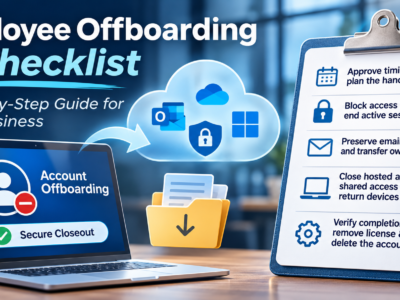
When someone leaves your company, closing out their access is part security task and part handoff, and doing it in the wrong order can cause you to lose data you needed. A clear employee offboarding IT checklist for small business keeps the two of you, the owner and your MSP, in step: you decide the timing and who takes over the person’s work, and your IT provider handles the technical closeout. The key rule, straight from Microsoft’s own guidance, is to preserve the person’s email and files and finish the handoff first, then remove their license and delete the account, because deletion starts a retention clock. This guide walks through the steps and gives you a checklist to keep as proof it was done.
The short version
- You approve the timing and who takes over the work; your MSP handles the technical closeout.
- Block sign-in first, and end any active sessions, so access stops the moment it should.
- Save the mailbox and files and transfer ownership before you delete anything.
- Close out hosted app access, shared logins, and get company devices back.
- Verify the handoff is complete and recorded, then remove the license and delete the account.
What an employee offboarding IT checklist covers
An employee offboarding IT checklist for a small business covers everything that needs to be locked down or handed over when someone leaves: their email and files, their access to your Microsoft 365 account and to any hosted business apps, shared logins they could reach, and the devices they used. The goal is two things at once, closing access so nothing is left open, and preserving the person’s work so whoever takes over isn’t starting from scratch. The steps below put those in the right order, with you and your MSP each owning your part.
Step 1: Approve the timing, data handoff, and responsible people
This step is yours as the owner, with your MSP ready to act. Before anything is switched off, decide three things: exactly when access should be cut (often the moment the person is notified, for a sensitive departure), who will take over the person’s email, files, and work, and who on your side and your MSP’s side is responsible for each part. Agreeing this up front avoids the two worst outcomes: access left open after someone leaves, or important work deleted before anyone saved it. Your MSP executes the technical steps; the decisions about timing and who gets the data stay with you.
Step 2: Block access and review active sessions
The first technical move is to stop the person from signing in. In Microsoft 365, that means blocking their sign-in so they can’t reach your organization’s services or data. Blocking sign-in alone isn’t always enough, though, because someone may already be signed in somewhere, so your MSP should also sign the person out of active sessions and reset the password. If you use hybrid Active Directory, where accounts sync from an on-premises directory, note that those accounts are managed in Active Directory rather than only in Microsoft 365. The point of this step is simple: from here on, the former employee can’t get back in while you handle the handoff.
Step 3: Preserve the mailbox and files, and transfer business ownership
Now preserve the person’s work before anything is removed. Save the contents of their mailbox, and decide how to keep the address useful: Microsoft lets you forward their email to the coworker taking over, or convert the mailbox to a shared mailbox so the team can still see messages from customers who email the old address. Give the right coworker access to the former employee’s OneDrive and Outlook data so files and history aren’t stranded. For shared files and any business accounts the person owned, transfer ownership to someone who stays. One timing detail matters here: after an account is deleted, Microsoft retains the person’s OneDrive and Outlook content for 30 days and lets you restore within that window, but the clean way to do this is to hand everything over first, not to rely on the grace period. If there’s a legal or compliance reason to retain the person’s data, raise that before you delete anything.
Step 4: Check hosted apps, shared access, and device return
Email and files aren’t the whole picture. The person may have had access to hosted business applications, your line-of-business software running in the cloud, as well as shared logins and service accounts that don’t belong to any one person. Your MSP should close or reassign the former employee’s access to those hosted apps, and review any shared or service credentials the person could reach, changing them if needed, since a shared password walks out the door with the employee. On the device side, wipe and block the person’s mobile device to remove your organization’s data from it, and collect any company laptops, phones, or access cards. Hosted-app access and shared logins are the pieces most commonly missed, which is exactly why they belong on the checklist.
Step 5: Verify completion before license and account cleanup
Only after the handoff is done and verified should you clean up the account. Confirm that the mailbox and files are saved, access is transferred, hosted apps and shared logins are closed, and devices are back, and record that it’s all complete. Then remove the Microsoft 365 license, which you can reassign to someone else, and delete the user account. Doing it in this order matters because removing the license and deleting the account start Microsoft’s 30-day retention window, after which the content is permanently deleted. Verifying completion first means you’re never racing that clock. The finished checklist below is your record that the closeout was done properly, which is worth keeping.
Who does what: owner and MSP
Clear lanes make this smooth. You, the owner, decide when access is cut, who takes over the person’s work and data, and anything involving legal holds or retention. Your MSP handles the technical closeout: blocking sign-in, ending sessions, preserving and transferring the mailbox and files, closing hosted-app and shared access, wiping devices, and the final license and account cleanup, then confirming each step is done. Keeping that split clear is how nothing falls through the cracks and nothing gets deleted before it should.
The offboarding checklist (keep this as your record)
Work through this with your MSP for each departure, and keep the completed copy as proof the closeout was done.
Where CloudTop Office fits
We handle the IT side of offboarding so you can focus on the people side. That means running the technical closeout, access, mailbox and file handoff, hosted-app and shared-access review, device wipe, and the final cleanup, and giving you a completion record at the end. The decisions stay with you: timing, who takes over the work, and anything touching legal holds or retention. Exactly what’s covered depends on your service plan, so the honest step is to talk it through. If you host business software with us, see how Microsoft 365 fits alongside it in Microsoft 365 in a hosted desktop.
Frequently asked questions
What is an employee offboarding IT checklist?
It’s a step-by-step list for closing out a departing employee’s technology access while preserving their work. It covers email, files, Microsoft 365 and hosted app access, shared logins, and devices, and it doubles as a record that the closeout was done properly.
What should you do first when an employee leaves?
Agree the timing and the handoff, then block the person’s sign-in and end active sessions so access stops. Preserving email and files and transferring ownership comes next, before you remove the license or delete the account.
How do I keep a former employee’s email and files?
Save the mailbox, and either forward it to the coworker taking over or convert it to a shared mailbox so the address stays useful. Give that coworker access to the person’s OneDrive and Outlook data, and transfer ownership of shared files before any cleanup.
When should I remove the license and delete the account?
Last, after the handoff is complete and verified. Removing the license and deleting the account start Microsoft’s 30-day retention window, after which the content is permanently deleted. Finish the handoff first so you’re not racing that clock.
What about hosted apps and devices?
Close or reassign the person’s access to any hosted business apps, review shared logins and service accounts they could reach, and change those if needed. Wipe and block their mobile device to remove your data, and collect company laptops, phones, and access cards.
Who handles offboarding, the owner or the MSP?
Both, in their lanes. The owner decides timing, who takes over the work, and any legal-hold or retention calls. The MSP runs the technical closeout and confirms each step is done. Clear lanes keep anything from being missed or deleted too early.
Set up your employee-access checklist
Having a standard offboarding checklist, and someone to run it, means no scramble the next time someone leaves. We can help you build an employee-access checklist for your business and handle the IT closeout, while the people decisions stay with you. Get a personalized quote from CloudTop Office.
This article is general information based on Microsoft’s published guidance, not legal advice. For the official steps, follow Microsoft’s guide to removing a former employee, and involve HR or counsel for legal-hold and retention decisions. CloudTop Office provides IT support. Our sister brand, CloudTop SaaS, cloud-hosts Windows business software.
 BSO Payroll Access Changes: What Employers Should Check

Leave a Reply