
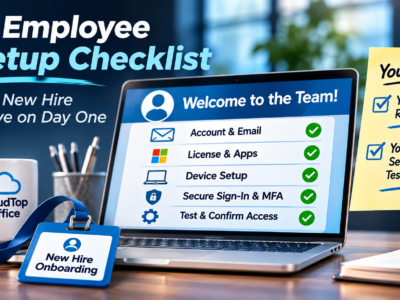
A well-organized new employee IT setup checklist ensures that every new hire has the tools, access, and resources they need to be productive from day one, rather than spending their first morning waiting for login credentials. The key is providing your Managed Service Provider (MSP) with the necessary information ahead of the employee’s start date, allowing them to prepare accounts, licenses, devices, and initial login credentials in advance. This guide walks you through the information to provide, the setup your MSP will handle, and the steps to verify everything is working before your new employee gets started. You determine the employee’s role and access permissions, while your MSP takes care of the technical setup.
The short version
- Send the start date, manager, role, and the access you approve before the hire starts.
- Your MSP creates the account, assigns the right license, and gets the device ready.
- Arrange a secure first sign-in and multi-factor enrollment, not a password over email.
- Test email, shared files, and the business-app tasks the role needs before day one.
- Record what’s done, what’s outstanding, and who the new hire calls for help.
What to send your MSP before day one
Most onboarding delays come from missing information, so start here. A few days before the start date, send your MSP a short request with the essentials: the new hire’s start date, their name and the email address to use, their manager, their role or job title, and the access you approve for that role. That last part is the one owners skip, and it’s the most important. Be specific about which Microsoft 365 apps they need, which shared files or folders, and which business apps, including any apps you host in the cloud. The clearer the request, the less back-and-forth later, and the more likely the new person can work the moment they sit down. The checklist near the end of this guide is the exact request to send.
Accounts, licenses, and device readiness
From your request, your MSP sets up the foundation. In Microsoft 365, that means creating the user account and assigning the right license, which matters because a user can’t use email or the apps until a license is assigned. Your MSP assigns only the license and apps the role needs, and keeps permissions to the minimum for the job, which Microsoft recommends for security. On the device side, they get the computer ready: a new company machine is set up, updated, and secured before it’s handed over, or an existing device is prepared for the new user. The aim is that the account, the license, and the device are all in place and tested before the start date, not scrambled together on the morning itself.
Secure first sign-in and MFA enrollment
How the new hire first signs in is a security moment, so handle it carefully. Microsoft’s default settings create a password and require the user to change it at first sign-in, which is good practice. The credentials should be shared with the new person securely, not emailed in plain text, and the account should require that password change the first time they log in. Then enroll them in multi-factor sign-in as part of that first login, so their account is protected from the start rather than as an afterthought. Getting the first sign-in and MFA right on day one is far easier than chasing it down after the person is already working.
Test email, shared files, and business-app tasks
Setting up access is not the same as confirming it works, so test before day one. Send and receive a test email on the new account. Open the shared files and folders the role needs to confirm the permissions are right. And run the actual business-app tasks the person will do, including signing into any hosted apps you approved and doing a representative task in each, not just opening them. This is where a wrong permission or a missed license shows up while it’s still easy to fix. A new hire who can log in, email, reach their files, and use their business apps on the first try has a good first day, and that is the whole point of doing this ahead of time.
Record completion, open items, and support contacts
Finish by writing it down. Your MSP should confirm what’s complete, note anything still outstanding (a license that’s on order, an app the vendor hasn’t provisioned yet), and tell you and the new hire who to contact for help. That record does two things: it shows the setup was done properly, and it makes sure nothing that was still pending quietly gets forgotten. Give the new employee the support contact on day one too, so their first question has an obvious place to go. A short completion note closes the loop and turns onboarding into a repeatable process rather than a one-off scramble.
Who does what: owner and MSP
The lanes are simple. You, the owner or manager, decide who the hire is, their role, and the access you approve, and you handle anything that touches policy or compliance. Your MSP executes the setup: creating the account, assigning the right license with least-privilege permissions, preparing the device, arranging the secure first sign-in and MFA, testing, and recording completion. Keeping that split clear is what lets your MSP move fast without guessing at access decisions that are yours to make.
The request to send your MSP
Copy this, fill it in, and send it a few days before the start date.
Where CloudTop Office fits
We handle the IT side of onboarding so a new hire is productive on day one. From your request, we create the Microsoft 365 account and assign the right license, prepare and secure the device, arrange a secure first sign-in with multi-factor sign-in, grant the approved business-app and hosted-app access, test that it all works, and send you a completion record. The decisions stay with you: who the hire is, their role, and what they can access. What’s covered depends on your service plan, so the honest step is to talk it through. When someone leaves, the same care applies in reverse; see our companion guide, employee offboarding: what your MSP should close out.
Frequently asked questions
What is a new employee IT setup checklist?
It’s a list that makes sure a new hire can work on day one: the information you send your MSP before the start date, and the account, license, device, access, and first sign-in your MSP sets up and tests.
What should I send my MSP before a new hire starts?
The start date, the person’s name and email to use, their manager, their role, the access you approve (Microsoft 365 apps, shared files, and business apps including hosted ones), any licenses, the device, and who should get the secure sign-in credentials.
How far ahead should I send it?
A few days before the start date is usually enough for a standard setup; more if a new device needs ordering or a license needs purchasing. Earlier is always safer, since some steps depend on third parties.
How does the new hire get their password securely?
Not by plain email. Microsoft’s default setup creates a password and requires a change at first sign-in, and the credentials should be shared with the new person through a secure method. Enroll them in multi-factor sign-in during that first login.
What should we test before day one?
Send and receive a test email, open the shared files and folders the role needs, and run a representative task in each business app the person will use, including hosted apps. Testing beforehand is how a wrong permission gets caught while it’s easy to fix.
Who sets this up, me or my MSP?
Both, in their lanes. You decide who the hire is, their role, and the access to approve. Your MSP creates the accounts, assigns licenses with least-privilege permissions, preps the device, arranges the secure sign-in and MFA, tests, and records completion.
Set up your onboarding with CloudTop Office
A standard onboarding request and someone to run it means no first-day scramble, every time. We can help you build the request checklist for your business and handle the IT setup, while the people decisions stay with you. Get a personalized quote from CloudTop Office.
This article is general guidance based on Microsoft’s published steps. For the official details, see Microsoft’s guide to adding users and assigning licenses in Microsoft 365. CloudTop Office provides IT support; access decisions stay with the employer. Our sister brand, CloudTop SaaS, cloud-hosts Windows business software.
 Windows 11 Support: What Your MSP Should Check Now
Leave a Reply