
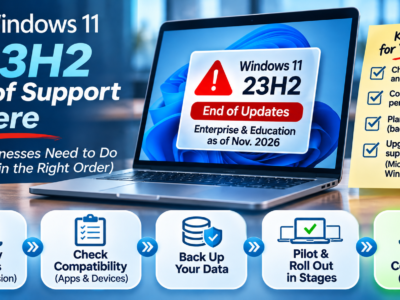
Windows 11 23H2 end of support has arrived for business editions. As of November 2026, Microsoft lists Windows 11, version 23H2 Enterprise and Education, as at end of updates, with the November 2026 security update being the last one for those editions. After that, PCs on 23H2 Enterprise or Education stop getting the monthly security updates that protect them against new threats. Here’s the catch: not every PC is affected the same way, because it depends on the edition and version each machine is running. So the first move isn’t to panic-upgrade everything. It’s to check the edition and version on each work PC, then ask your MSP for a tested upgrade plan. This guide covers both.
The short version
- Windows 11, version 23H2 Enterprise and Education have reached end of updates as of November 2026.
- Windows 11, version 23H2 Home and Pro ended a year earlier, on November 10, 2025.
- Check each PC’s edition and version first; not every machine is affected the same way.
- Microsoft recommends eligible devices move to Windows 11, version 26H2.
- Ask your MSP for a tested upgrade plan: back up, pilot, roll out, and prove it worked.
What is the Windows 11 23H2 end of support?
It means Microsoft has stopped shipping security updates for certain editions of Windows 11, version 23H2. Per Microsoft’s release-health page, the 23H2 Enterprise and Education editions reached end of updates in November 2026, and the November 2026 security update is the last one they’ll get. A PC that stays on an unsupported version keeps working, but it no longer receives the monthly patches that close newly discovered security holes, which is a growing risk the longer it sits. Microsoft recommends moving eligible devices to Windows 11, version 26H2, to keep getting updates. You can read the details in Microsoft’s official notice, and your MSP can confirm the right target version for your environment.
Step 1: Find the edition, version, and owner of each work PC
You can’t plan until you know what you have. Two quick checks give you the answer on any PC. For the edition, open Settings, go to System, then About, and look at the Windows specifications; it will say Home, Pro, Enterprise, or Education. For the version, press the Windows key and R, type winver, and press Enter; a small window shows the version (such as 23H2) and the build. Do this on every work computer, and write down the edition, the version, and who uses each one. That owner column matters: it’s how you make sure no machine gets missed, and who to coordinate the upgrade with later. A simple list of PCs, editions, versions, and owners is the foundation of the whole plan.
Step 2: Separate this 23H2 notice from other Windows releases
This is where people over- or under-react. The current notice is specifically about Windows 11, version 23H2 Enterprise and Education. If a PC is on 23H2 Home or Pro, it actually reached end of updates a year earlier, in November 2025, so that machine has been unsupported for a while and needs attention too. If a PC is on a newer version, such as 24H2 or later, it’s on its own timeline and isn’t part of this notice. And Windows 10 is a separate story altogether. The takeaway: don’t assume every computer is in the same boat. Your inventory from Step 1 tells you which machines are actually affected, so you upgrade what needs it and leave the rest on their own schedule.
Step 3: Check application support, peripherals, and upgrade eligibility
Before upgrading a single machine, confirm the upgrade won’t break the work it does. Three checks cover it. First, application support: make sure the business software on that PC is supported on the target Windows version, so an upgrade doesn’t leave a key program unusable. Second, peripherals: confirm the printers, scanners, signature pads, and other devices that PC relies on have drivers that work on the new version. Third, upgrade eligibility: confirm the PC actually meets the requirements for the target version, since some older hardware may not qualify and may need replacing rather than upgrading. Catching a blocked app or an ineligible machine now is far cheaper than finding out mid-rollout.
Step 4: Agree on backup, pilot testing, rollout, and completion evidence
An upgrade across a business is a project, not a single click, and a good MSP runs it like one. Agree on four things before anything moves. Backup: back up each machine first, so a bad upgrade is recoverable. Pilot testing: upgrade a few representative machines first and confirm the apps, peripherals, and workflows still work before touching everyone else. Rollout: move the rest in stages rather than all at once, so a problem affects a few people, not the whole office. Completion evidence: get confirmation that each machine upgraded successfully and nothing broke, in writing, so you know the job is actually done. If your provider can’t describe how they handle these four, that’s worth pushing on.
What if my business apps are hosted?
Here’s a point that’s easy to miss. If your business software runs hosted on a provider’s servers, that server is the provider’s responsibility to keep patched and supported. But the Windows PC on your desk, the computer you use to reach the hosted app, is a separate device, and it’s still your responsibility to keep it on a supported Windows version. Hosting your applications does not exempt your local computers from Windows support. So a 23H2 Enterprise or Education PC still needs an upgrade plan, even if everything it runs lives in the cloud. The hosted server and the endpoint on your desk are two different things, and both have to stay supported.
Your Windows support checklist
Run through this, then bring it to your MSP.
How CloudTop Office helps
We handle the IT side of a Windows transition so it doesn’t disrupt your work. That means taking an inventory of your PCs by edition and version, confirming your apps and peripherals are supported on the target, and running the upgrade the careful way, back up, pilot, staged rollout, and evidence it worked. If you host business software with us, we keep that hosted environment supported, and we can help keep your endpoint PCs on a supported Windows version too, so both sides stay covered. What’s included depends on your service plan, so the honest step is to talk it through. If you host QuickBooks or Act! with us, our guide to Windows 11 for firms running QuickBooks or Act! is a useful companion to this one.
Frequently asked questions
What is Windows 11 23H2 end of support?
It means Microsoft has stopped issuing security updates for certain 23H2 editions. The Enterprise and Education editions reached end of updates in November 2026, with the November 2026 security update being the last. Affected PCs keep running but no longer get monthly security patches.
How do I check my Windows edition and version?
For the edition, open Settings, then System, then About, and read the Windows specifications. For the version, press the Windows key and R, type winver, and press Enter to see the version (like 23H2) and build. Do this on each work PC.
Is my PC affected if it’s on 23H2 Home or Pro?
Yes, and sooner than the Enterprise and Education editions. Windows 11, version 23H2 Home and Pro reached end of updates on November 10, 2025, so those machines have been unsupported for about a year and should be upgraded.
What should I upgrade to?
Microsoft recommends moving eligible devices to Windows 11, version 26H2, to keep receiving updates. Your MSP can confirm the right target version for your environment and whether each PC is eligible.
Do I still need to upgrade if my apps are hosted in the cloud?
Yes. The hosted server is the provider’s responsibility to keep supported, but the local PC you use to reach it is a separate device that still needs a supported Windows version. Hosting your apps doesn’t exempt your endpoints.
Who handles the upgrade, me or my MSP?
Typically your MSP runs it: the inventory, the app and peripheral checks, and the backup, pilot, staged rollout, and evidence. Your part is deciding the timing and confirming which machines and users are in scope.
Scope your Windows support and upgrade plan
Handling this before the risk builds up is far easier than scrambling later. Tell us what your fleet looks like, or let us inventory it, and we’ll scope a tested Windows support and upgrade plan, backups, pilot, staged rollout, and evidence, matched to how your team works. Ask CloudTop Office for a personalized quote.
This article is general information based on Microsoft’s published guidance and is subject to change. For the official, current details, see Microsoft’s Windows 11, version 23H2 release health page. Our sister brand, CloudTop SaaS, cloud-hosts Windows business software.

Leave a Reply