

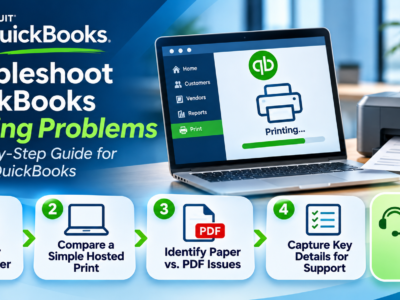
Hosted QuickBooks printing problems usually come down to one of four things: your local printer, the way printers are redirected into the hosted session, the remote session itself, or QuickBooks’ own PDF component. The good news is you can often tell which one it is in a few minutes, before you open a support ticket, with a short set of checks. This guide walks your accounting team through isolating the problem, the details to capture so a fix is fast, and why some repairs need your hosting provider to run them on the shared server rather than you. If you host QuickBooks Desktop, start here before you call.
The short version
- Print a simple test page to your local printer first, outside QuickBooks, to rule out the printer itself.
- Then print something simple inside the hosted session to tell a QuickBooks problem from an environment one.
- Figure out whether you can’t print to paper, or can’t save or email a PDF. They have different causes.
- Write down your QuickBooks version, how you connect, the printer, and the exact error.
- Leave server-side repairs to your provider. On a shared hosted server, those affect every company on it.
Why hosted QuickBooks printing has an extra layer
When you host QuickBooks, the program runs on a server in the cloud, not on your own computer. To print, your local printer is redirected into that hosted session, so QuickBooks can send a job back out to the printer sitting next to you. That redirection is a real convenience, and it’s also an extra link in the chain. A printing problem on hosted QuickBooks can live in any of four places: your local printer or its driver, the printer redirection into the session, the remote session or its drivers, or QuickBooks’ own PDF component. The checks below work from the outside in, so you can find the layer that’s actually failing instead of guessing.
Check 1: Test a harmless local print and record the result
Start with the simplest thing. On your own computer, outside the hosted session and outside QuickBooks, print a basic test page, a line of text from Notepad or a web page, to the printer you’re having trouble with. If that fails, the problem is your local printer or its driver, and it has nothing to do with QuickBooks or hosting yet. Fixing or reconnecting the printer locally may solve everything. If the local test page prints fine, you’ve confirmed the printer works, and the problem is further up the chain. Either way, record the result, because it’s the first thing your provider will want to know.
Check 2: Compare a simple hosted print with QuickBooks output
Now move into the hosted session. Print something simple that isn’t QuickBooks, a Notepad page or a document from another program, to the same printer. This one comparison tells you a lot. If the simple hosted print works but QuickBooks won’t print, the problem is specific to QuickBooks, often its PDF component rather than the printer. If nothing prints from the hosted session, even the simple page, then the issue is the redirection or the session itself, not QuickBooks. You’ve just split the problem in half without touching a setting, which is exactly what makes a support ticket fast to resolve.
Check 3: Separate physical printing from PDF creation or email
“It won’t print” can mean two different things, and they have different fixes. Decide which one you’re hitting. If paper isn’t coming out of the printer, that’s a physical printing path: the printer, the redirection, or the driver. If the printer works but you can’t save a form as a PDF or email it, that’s QuickBooks’ PDF path. QuickBooks relies on a PDF component (it uses parts of the Microsoft XPS Document Writer) to create those files, and that’s a common source of QuickBooks PDF errors like “could not save as a .pdf,” “PDF Converter is offline,” or an activation error. Knowing whether you’re failing to print to paper or failing to make a PDF points straight at the cause, so note which it is.
Check 4: Capture version, client, printer, and error details
A few details turn a slow back-and-forth into a quick fix. Before you open a ticket, write down your QuickBooks version and edition (for example, QuickBooks Desktop Enterprise and the year), how you connect to the hosted session (the Parallels or Remote Desktop client and its version), the make and model of the printer, whether the problem is printing to paper or saving or emailing a PDF, and the exact wording of any error message. Copy the error text word for word rather than paraphrasing it, since the specific wording often names the cause. Hand that to your provider, and you’ve skipped most of the diagnostic calls.
Check 5: Let your provider approve and run shared-server repairs
Here’s the one that’s easy to get wrong. On a hosted setup, QuickBooks runs on a shared server, so the common fixes, running the QuickBooks Print & PDF Repair Tool from the QuickBooks Tool Hub, adjusting printer drivers, or restarting the print spooler, affect every company on that server, not just you. Those are not do-it-yourself steps in a shared hosted environment. Intuit even notes that some of its standard PDF fixes apply to Windows but not to Terminal Services, which is the kind of environment hosted QuickBooks runs on. So after the isolation tests above, the right move is to send your findings to your hosting provider and let them run any server-side repair in a controlled way. Trying to fix the server yourself can disrupt other businesses and usually isn’t possible from your account anyway.
How an application-aware MSP helps
This is where a provider that actually knows QuickBooks, not just servers, makes the difference. An application-aware MSP can tell a printer-redirection problem from a QuickBooks PDF-component problem, run Intuit’s Print & PDF Repair Tool on the hosted server safely, fix redirection and driver issues without disrupting the other businesses on that server, and get your team printing again, which matters most at month-end close or tax season when you can’t wait. The isolation checks above get you most of the way to an answer; an application-aware provider takes that answer and fixes the right layer the first time. If you host QuickBooks Desktop with us, that application awareness is part of the service: see QuickBooks Desktop hosting.
The quick diagnostic checklist
Run these before you open a ticket, and send the results to your provider.
Frequently asked questions
Why does hosted QuickBooks have more printing problems than a local install?
Because there’s an extra layer. QuickBooks runs on a cloud server, and your local printer is redirected into that session. That redirection is one more place a problem can live, alongside your printer, the remote session, and QuickBooks’ own PDF component.
How do I tell if it’s my printer or QuickBooks?
Print a simple page outside QuickBooks, first to your local printer, then from inside the hosted session. If simple prints work but QuickBooks doesn’t, it’s QuickBooks-specific. If nothing prints from the session, it’s the redirection or the session, not QuickBooks.
What’s the difference between a printing problem and a PDF problem in QuickBooks?
Printing to paper uses the printer, the redirection, and the driver. Saving or emailing a PDF uses QuickBooks’ PDF component, which relies on the Microsoft XPS Document Writer. PDF errors like “could not save as a .pdf” or “PDF Converter is offline” point to that component, not the printer.
Can I run the QuickBooks Print & PDF Repair Tool myself on hosted QuickBooks?
On a shared hosted server, no. That tool and other server-side fixes affect every company on the server, so your provider runs them in a controlled way. Your part is the isolation tests and capturing the details; the server-side repair is theirs.
What details should I have ready before opening a ticket?
Your QuickBooks version and edition, how you connect (the Parallels or Remote Desktop client and version), the printer make and model, whether it’s a paper or PDF problem, and the exact error text. Those few details usually let a provider fix the right layer the first time.
Get application-aware QuickBooks support
Printing trouble at close or tax time is the last thing an accounting team needs. If you host QuickBooks Desktop with a provider that knows the software and the hosted environment, a problem like this gets isolated and fixed fast, on the right layer, without disrupting anyone else. Get a personalized quote from CloudTop Office and ask about application-aware QuickBooks support.
This article is general troubleshooting guidance. For Intuit’s official steps, see Fix PDF and Print problems with QuickBooks Desktop. In a hosted environment, server-side repairs are handled by your provider. Our sister brand, CloudTop SaaS, cloud-hosts Windows business software.
 Employee Offboarding: What Your MSP Should Close Out
Leave a Reply