

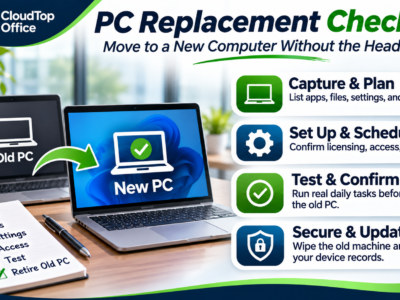
A small business computer replacement checklist turns swapping an employee’s PC from a lost afternoon into a quiet handover. On the surface it looks simple: unbox the new machine, hand it over, done. In practice, the old computer holds local files, saved settings, licensed software, and the small configurations that person relies on every day, and missing any of them means a frustrated employee and a help ticket the first morning. The fix is a short plan: capture what’s on the old PC, set the new one up to match, test the real daily work before anything is retired, and clear the old machine safely. This guide walks through each step, and ends with a checklist you can assign and tick off.
The Short Version
- Capture what’s on the old PC: apps, local files, settings, and peripherals.
- Sort out licensing and set up the new machine’s accounts and access.
- Time the swap so it doesn’t interrupt the person’s work.
- Test the employee’s real daily tasks on the new PC before retiring the old one.
- Back up, securely wipe the old machine, and update your device records.
List the apps, local files, settings, and peripherals
Start with what’s actually on the old computer, because a lot of it isn’t in the cloud. List the installed applications the person uses: their line-of-business software, accounting or CRM tools, and anything specialized. Then the local files, the documents saved to the desktop or a local drive rather than a shared or cloud location, which are the ones most easily lost. Don’t forget the settings that make a machine feel like theirs: browser bookmarks, saved logins, email signatures, printer defaults, and any app configurations. And note the peripherals that plug in: printers, scanners, a second monitor, signature pads, label printers. Writing all of this down first is what keeps the new machine from arriving almost right, missing the one thing that stalls the person’s day.
Agree licensing, access setup, and move timing
Once you know what the person needs, sort out three things before the swap. Licensing: confirm which software can simply be installed on the new machine and which needs a license moved or re-activated, so nothing opens to a “not licensed” message on day one. Access: set up the person’s accounts and permissions on the new PC, email, shared files, and the business apps they use, so they can sign in and work immediately. And timing: agree when the swap happens so it lands outside a deadline the person is under, like a billing run or a report that’s due. A machine swap is far smoother when the licensing and access are ready in advance and the timing is chosen, not stumbled into.
Test daily tasks with the employee before retiring the old PC
This is the step that’s easiest to skip and most worth keeping. Before the old computer is wiped or taken away, have the employee sit down at the new one and run their actual daily tasks: open their software, reach their files, print, scan, send a test email, and do a representative piece of real work. Keep the old machine available as a fallback until that’s done, so if something was missed, they’re not stuck. Testing with the person who uses the machine, not just confirming it powers on, is how a wrong setting or a forgotten file surfaces while the old PC is still there to recover from. Only once they can do their job on the new machine is it safe to retire the old one.
Securely remove data and update your records
The old computer doesn’t just go in a cupboard. Before it’s reused, donated, or disposed of, make sure everything needed has been moved off it, then have the data securely removed so company and personal information can’t be recovered from the drive. A quick file-delete is not the same as a secure wipe, which is why this is worth doing properly, or handing to your IT provider. Finally, update your records: note that the person is now on the new machine, with its details, and that the old one has been wiped and retired. Keeping your device list current means the next replacement, or a support call, starts from an accurate picture instead of guesswork.
Your PC replacement checklist
Assign an owner to each task and mark it off as you go. Copy the table if you’d like a fresh one for each replacement.
| Task | Owner | Completed |
|---|---|---|
| Before the swap | ||
| List the installed apps the employee uses. | ||
| Capture local files from the desktop and local drives. | ||
| Note settings: bookmarks, saved logins, signatures, printer defaults. | ||
| List the peripherals that plug in (printers, scanners, monitors, pads). | ||
| Confirm software licensing for the new machine. | ||
| Set up the new PC’s accounts, email, and access. | ||
| Agree the swap timing, outside the person’s deadlines. | ||
| Swap and test | ||
| Set up the peripherals on the new machine. | ||
| Have the employee run their daily tasks on the new PC. | ||
| Keep the old PC as a fallback until testing passes. | ||
| After the swap | ||
| Confirm everything needed is moved off the old PC. | ||
| Securely wipe the old machine’s drive. | ||
| Update device records (new machine assigned, old one retired). | ||
Where CloudTop Office fits
A PC swap is smoother when your IT partner handles the technical side. Talk with CloudTop Office about PC replacement and managed IT, and we can capture what’s on the old machine, set up and license the new one, help test it with your employee, and securely wipe the old device. What’s included is part of your service scope, so it’s worth agreeing which of these steps sit with us and which stay in-house, so nothing is assumed and nothing is missed.
Frequently asked questions
What should a computer replacement checklist include?
The apps, local files, settings, and peripherals on the old PC; licensing and access setup for the new one; the swap timing; a test of the employee’s daily tasks before retiring the old machine; and secure data removal plus an update to your device records. The checklist above covers each.
How do I move files and settings to a new PC?
Start by capturing anything stored locally rather than in the cloud, along with settings like bookmarks, saved logins, and email signatures. Then set those up on the new machine. Files already in a shared or cloud location come across automatically once the person signs in.
Should I test the new computer before retiring the old one?
Yes. Have the employee run their real daily tasks on the new PC while the old one is still available as a fallback. That’s how a missed file or a wrong setting surfaces while it’s still easy to fix, rather than on their first morning.
What happens to the old computer?
Once everything needed is moved off, the drive should be securely wiped so company and personal data can’t be recovered, before the machine is reused, donated, or disposed of. A simple delete isn’t enough, so this is often best handled by your IT provider.
Plan your next PC replacement
Tell us about the machine and how the person uses it, and we’ll help you plan the handover so nothing is lost and the old device is cleared safely, with the work agreed as part of your service scope. Discuss PC replacement and managed IT with CloudTop Office.
CloudTop Office provides managed IT support and hosts the business software companies rely on. Our sister brand, CloudTop SaaS, cloud-hosts Windows business software.
Leave a Reply